Start here
Your Bunnyly setup, one hop at a time
Eight short steps from first login to a secure website and email. Most take a few minutes; the domain change can take a few hours.



Step 1 of 8Log in and turn on two-factor authentication
Hops: Hi, I'm Hops! I'll walk you through everything in order. Tick each box as you go; your progress is saved only in this browser.
- Open your control panel. Enter your username and click Next, then your password and click Login.


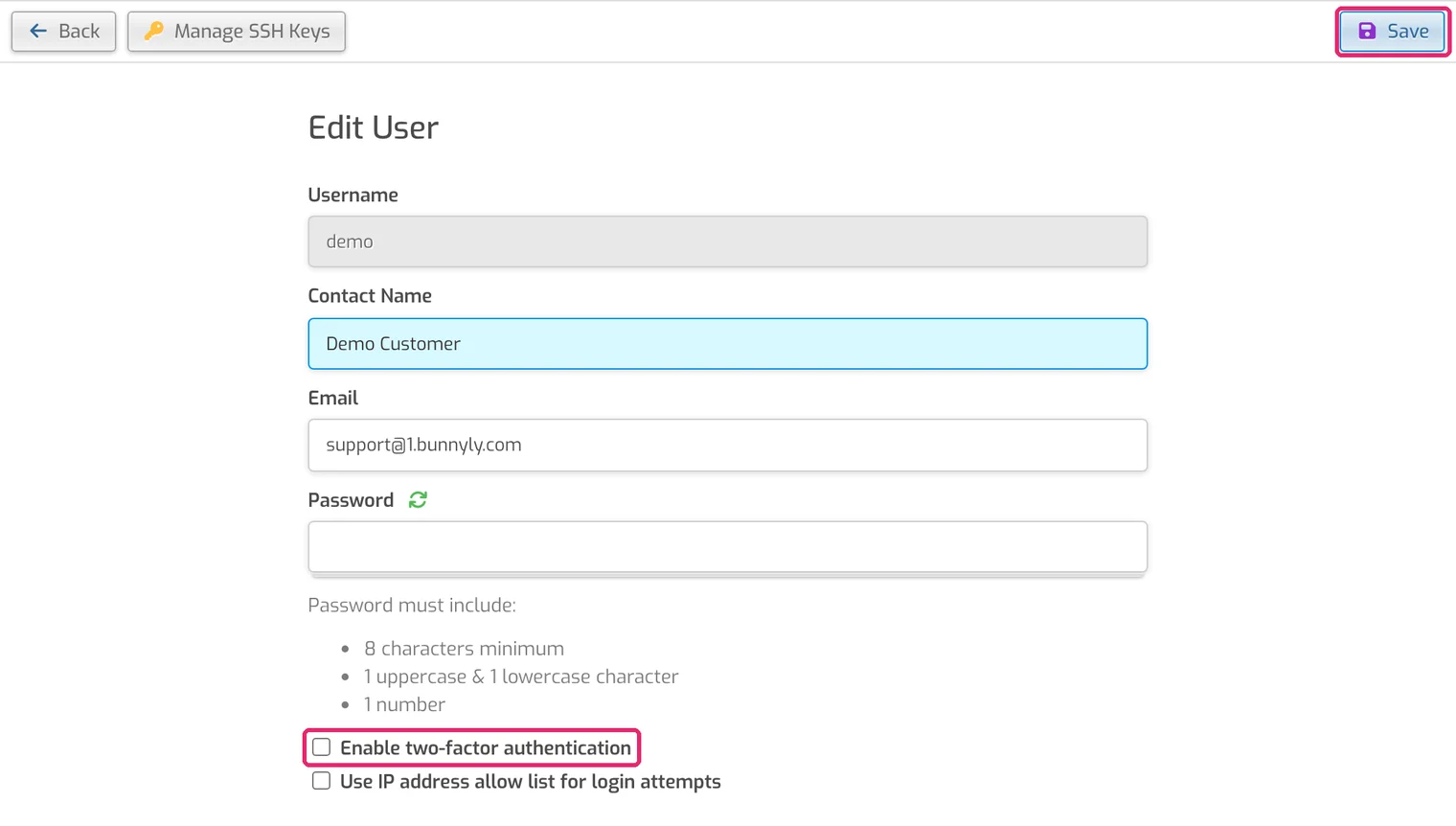
- Click the person icon (top right) to open Edit User. If you're still on the temporary password from your welcome email, set a new one here first and click Save.
- Tick Enable two-factor authentication and click Save.
- Add the QR code the panel shows to an authenticator app on your phone.
- Save the 2FA reset code somewhere safe, such as your password manager.
Bramble: I'm Bramble, the security bunny. The reset code is your spare key: if you lose your phone, it unlocks your account on the 2FA unlock page.
Checklist
More detail: Logging in · Two-factor authentication
Step 2 of 8Add your domain
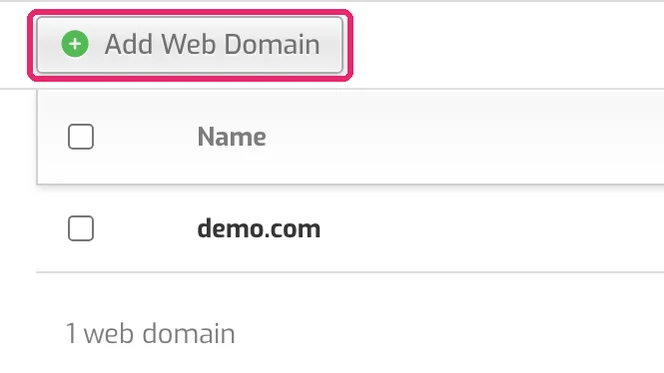
- Open the Web tab and click Add Web Domain.
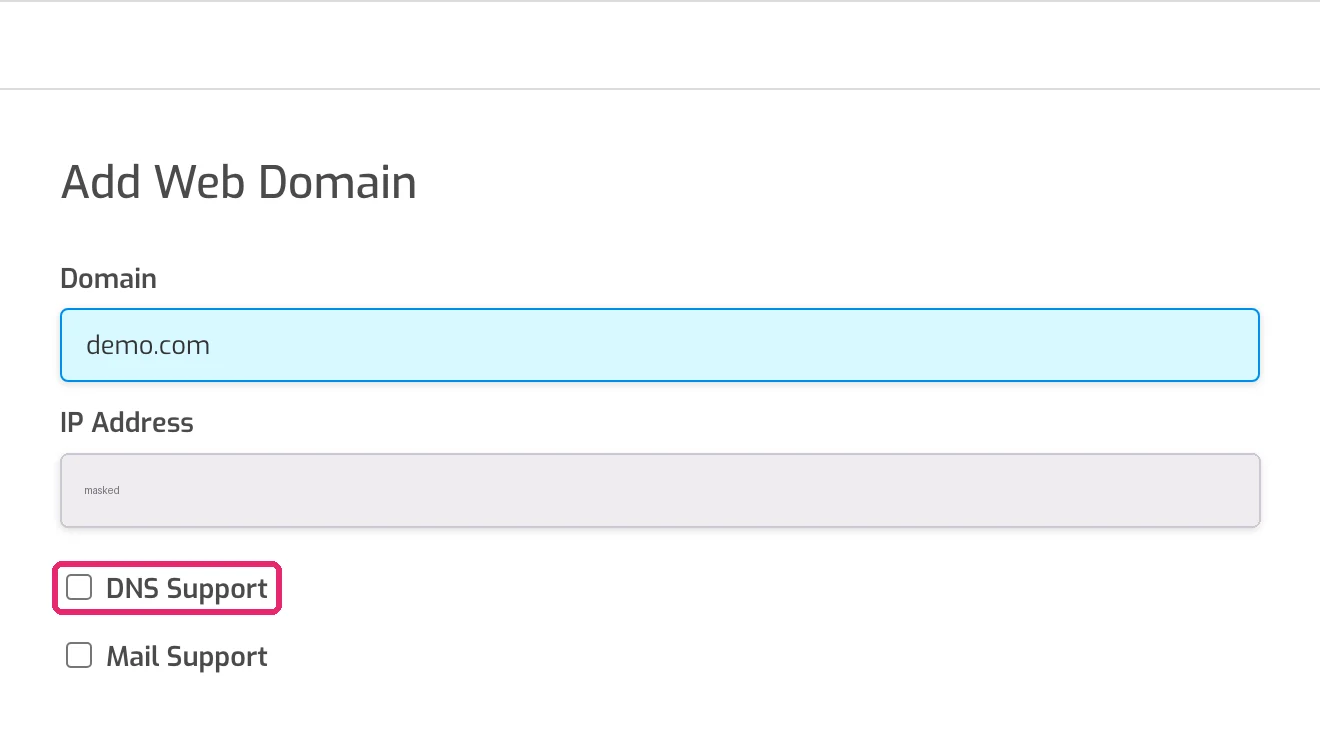
- Enter your domain (for example
yourbusiness.com), tick DNS Support, and tick Mail Support if you want email there. Click Save.
Hops: Already see your domain in the Web tab? Then it's added. Just tick the boxes and hop on.
Checklist
More detail: Add your website
Step 3 of 8Point your domain to Bunnyly
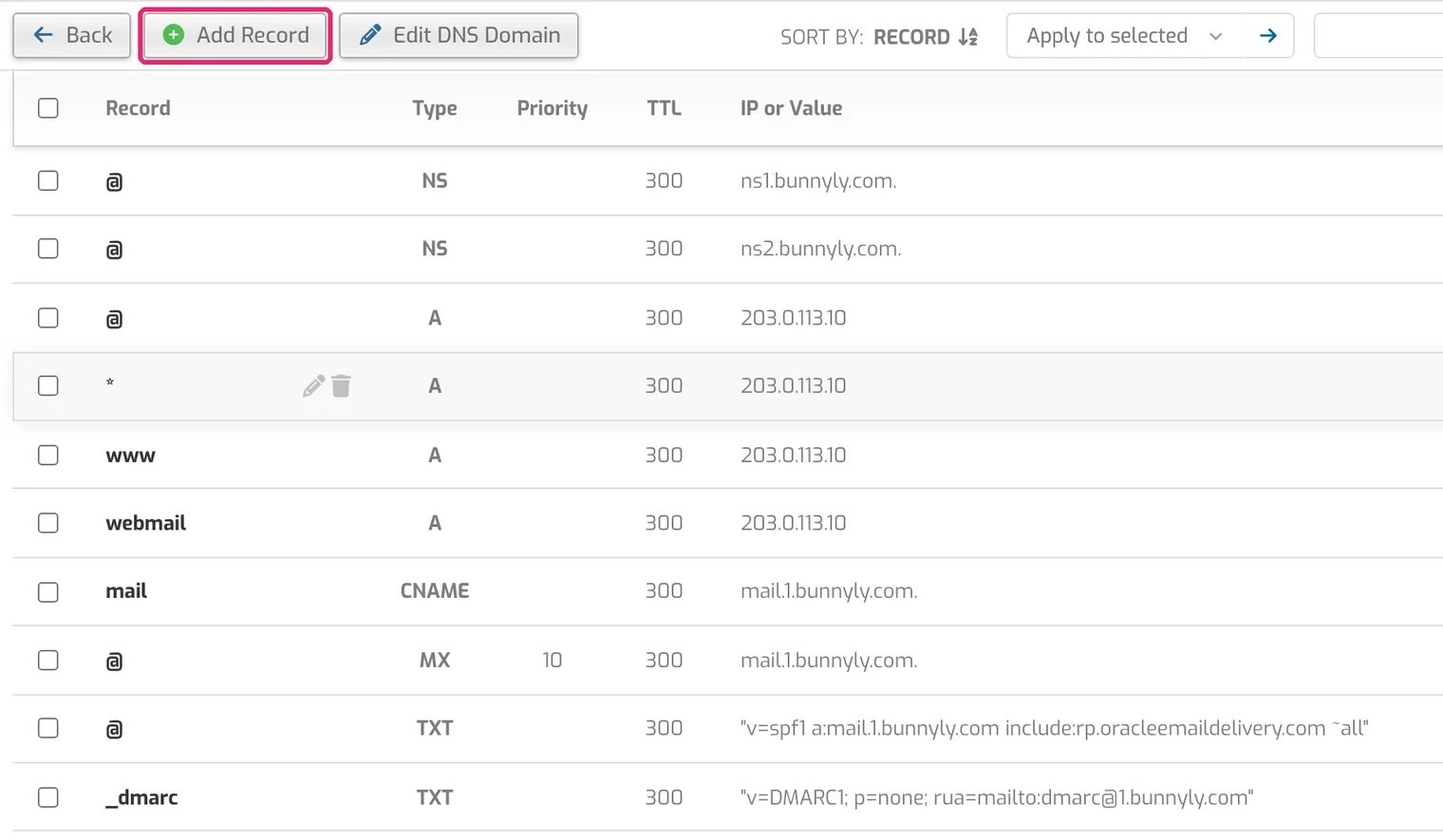
Your domain's nameservers tell the internet where your website and email live. Set them once, at the company where you bought the domain (your registrar).
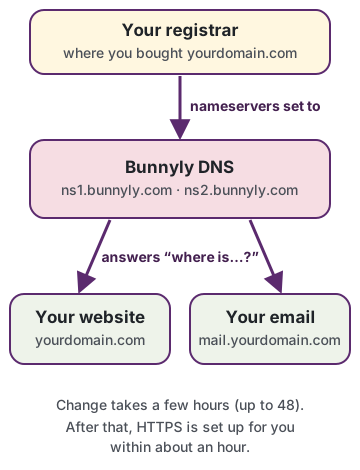
- At your registrar, open your domain's Nameservers setting and choose custom nameservers.
- Enter
ns1.bunnyly.comandns2.bunnyly.com(replace any others) and save.
Hops: This is the only waiting step: usually a few hours, at most 48. Carry on with step 4 meanwhile; things start working by themselves once it goes through.
Checklist
More detail: Nameservers · DNS records
Step 4 of 8Create a mailbox and set up your mail apps
Pip: I'm Pip, your mail bunny! Let's make an address like hello@yourbusiness.com and get it on your phone.
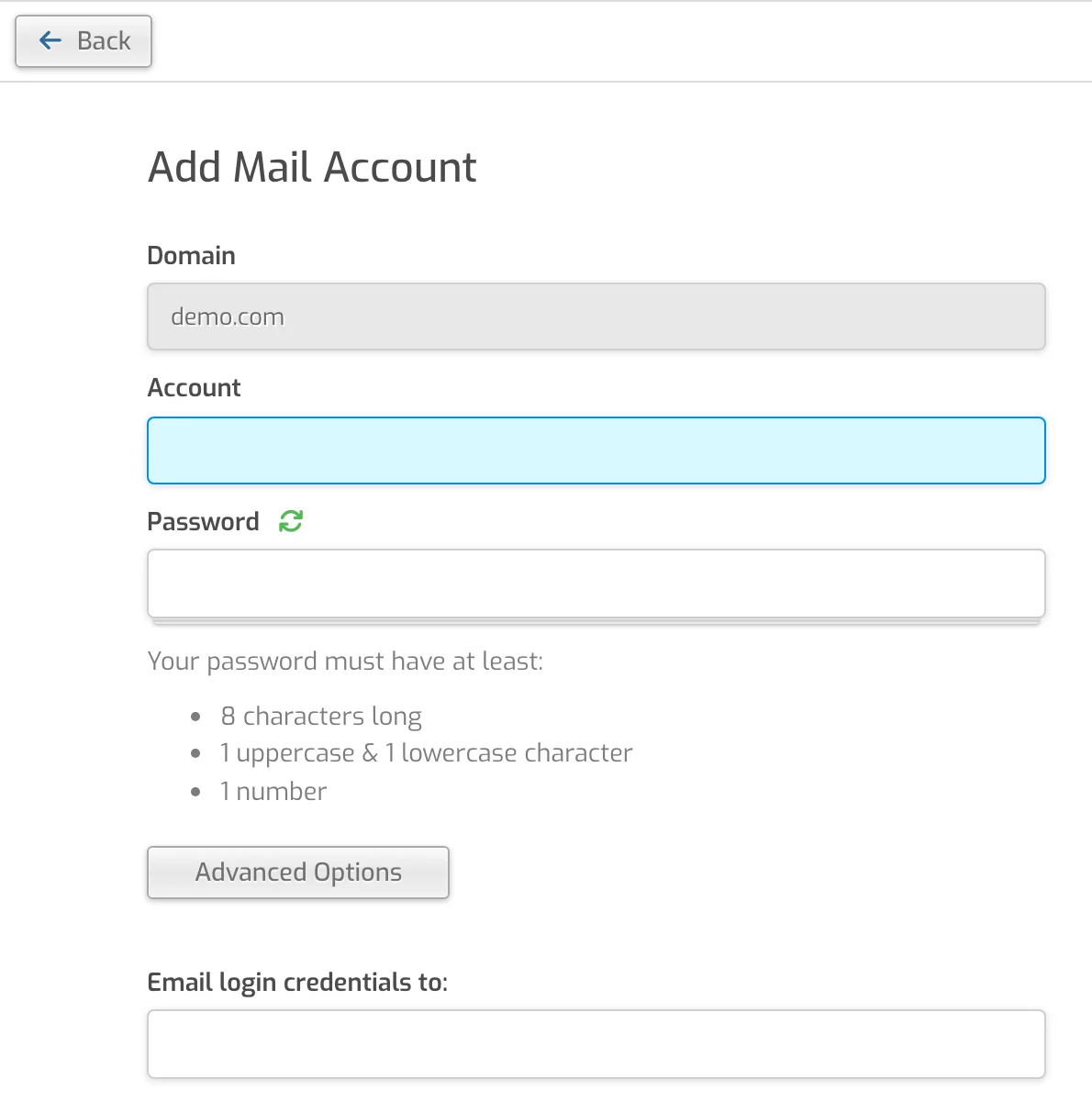
- Open the Mail tab, click your domain, then Add Mail Account.
- Enter the first part of the address (for example
hello) and a strong password. Click Save.
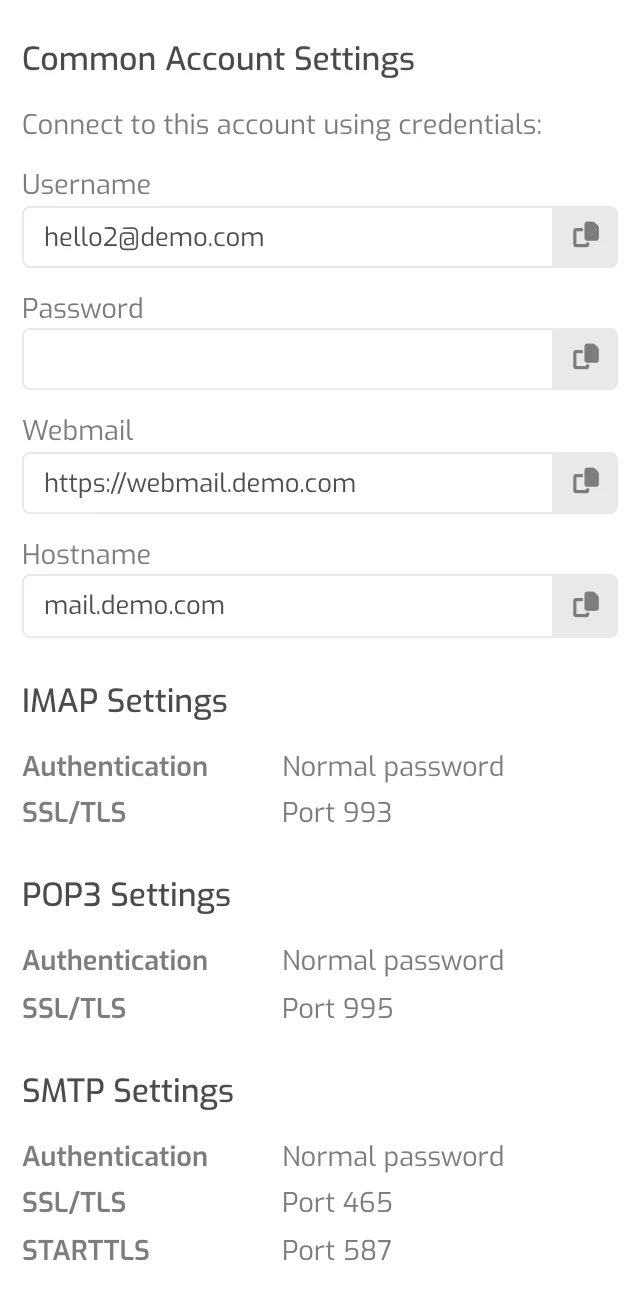
- In your phone or computer mail app, add an account, choose IMAP and enter:
| Setting | Value |
|---|---|
| Account type | IMAP |
| Incoming (IMAP) server | mail.yourdomain.com |
| Incoming port & security | 993 with SSL/TLS |
| Outgoing (SMTP) server | mail.yourdomain.com |
| Outgoing port & security | 587 with STARTTLS or 465 with SSL/TLS |
| POP3 instead of IMAP | mail.yourdomain.com, port 995 with SSL/TLS |
| Username (incoming and outgoing) | Your full email address, e.g. hello@yourbusiness.com |
| Password | The mailbox password you chose when creating the mailbox |
| Outgoing server requires sign-in | Yes, use the same username and password |
Replace yourdomain.com with your own domain. mail.bunnyly.com also works for all of these as an alternative.
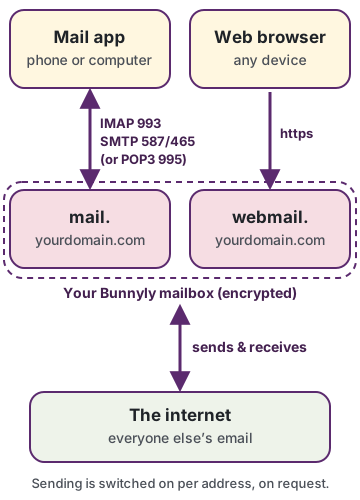
- In a browser, open webmail. followed by your domain, for example
webmail.yourbusiness.com, and log in with your full address.

Pip: Receiving works straight away. Sending is switched on per address, on request: here's how to ask.
Checklist
More detail: Create a mailbox · App settings · Webmail
Step 5 of 8Log in to WordPress
WordPress installs itself within about 2 minutes of adding your domain.
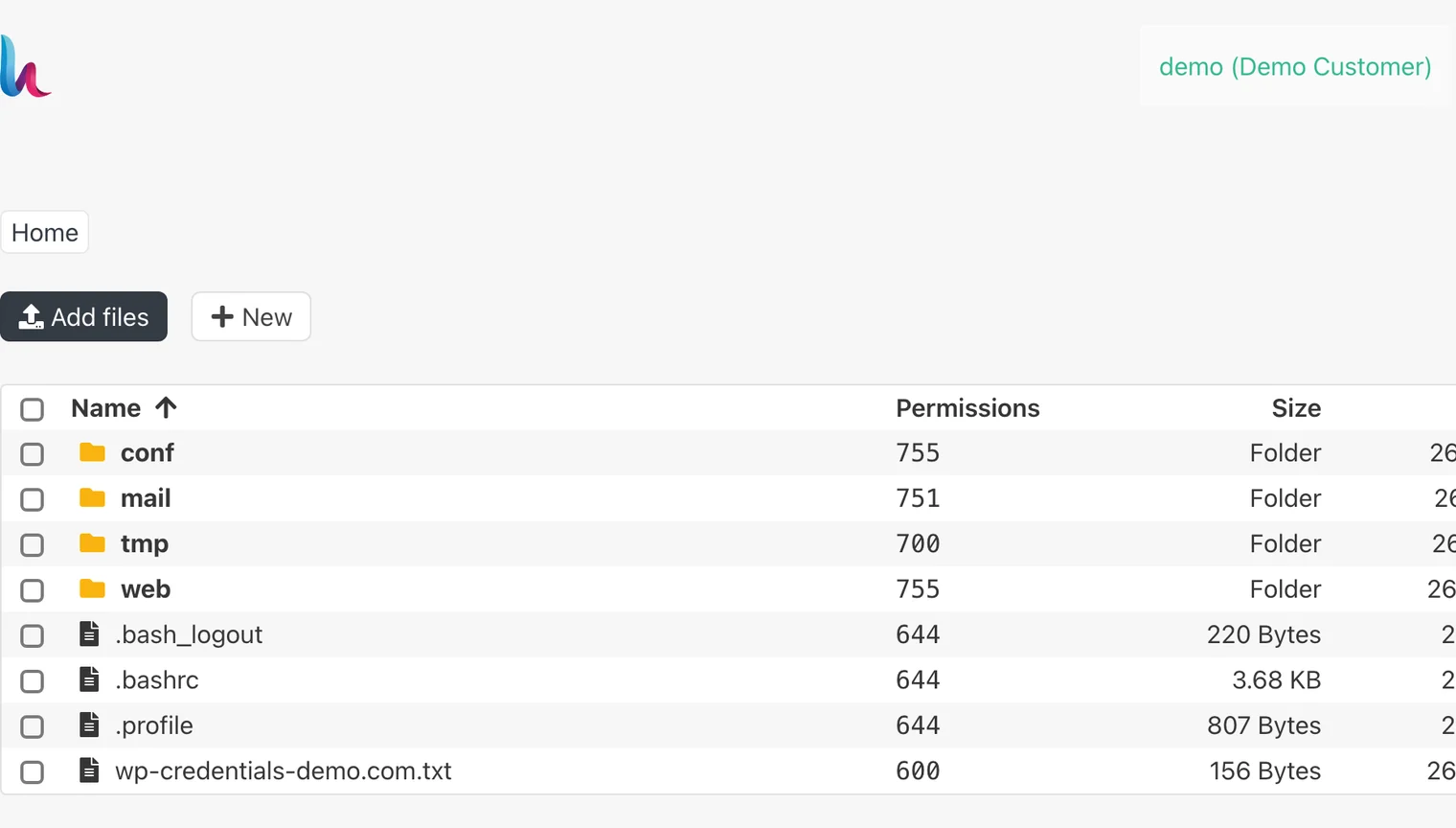
- In the panel, open the File Manager (folder icon, top right) and open
wp-credentials-yourdomain.txt. It holds your WordPress address, username and password.
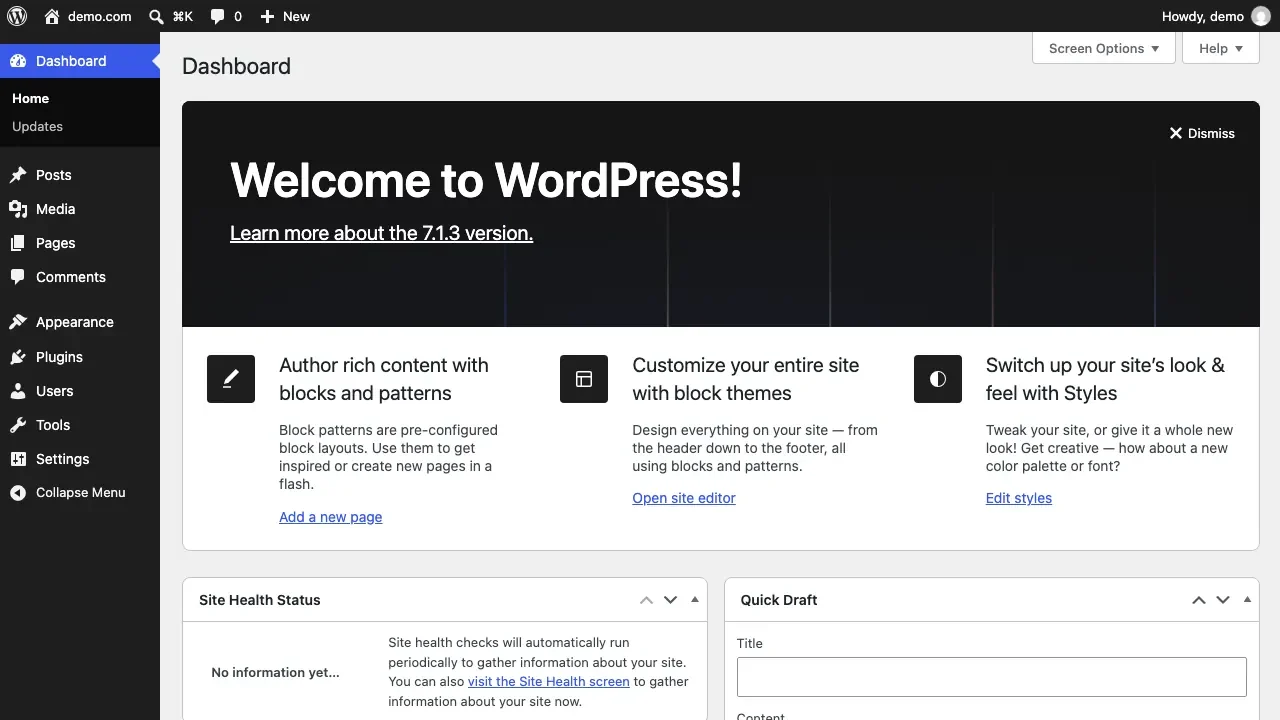
- Go to your domain followed by
/wp-login.php(for exampleyourbusiness.com/wp-login.php) and log in. - Change the WordPress password to one of your own: Users → Profile → Set New Password.

Checklist
More detail: Find your WordPress login · Website & WordPress
Step 6 of 8Check your padlock (SSL)
Bramble: Good news: there's nothing to switch on. Every domain gets a free certificate for itself and all its subdomains, and it renews automatically.
- About an hour after your nameservers point to us, open your website in a browser.
- Check for the padlock and that the address starts with
https://. Plain http visits are redirected automatically. - In WordPress, Settings → General: make sure both addresses start with
https://.
Checklist
More detail: SSL (HTTPS)
Step 7 of 8Know your backups
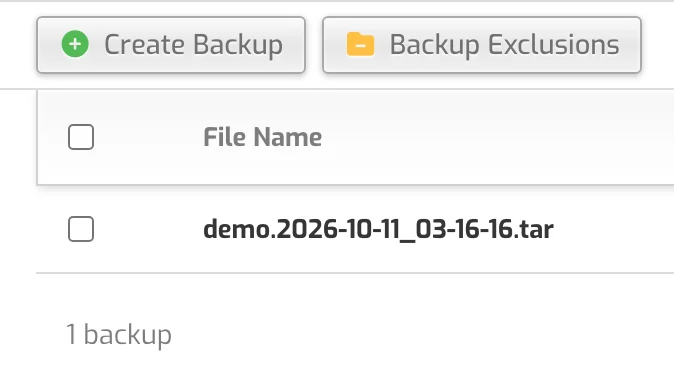
Bunnyly backs up your websites, email, databases and DNS every night, around midnight US Central time, and keeps the last 3.
- Open the Backups tab (the backup icon in the top row) to see your backups.
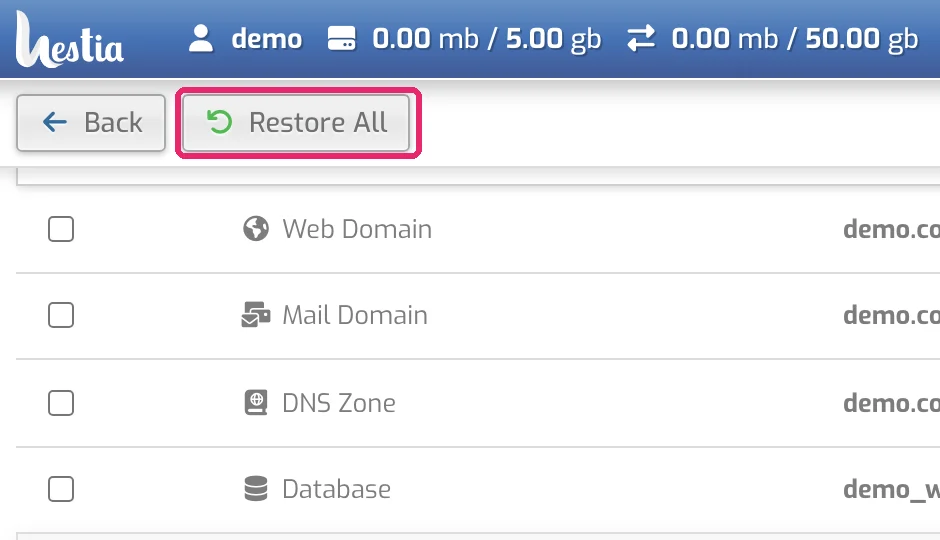
- Click a backup to see what's inside. Use Restore next to an item, or Restore All. A restore runs within about 5 minutes.
- Use Download to keep your own copy too.
Hops: A backup appears the night after you sign up, so this step may need tomorrow's visit. Tick it then!
Checklist
More detail: Backups
Step 8 of 8Know where to get help
- Search at the top of every page, e.g. phone email.
- The FAQ answers the most common questions.
- Moving from another host? Read Moving to Bunnyly.
- Forgot your panel password? Reset it yourself.
- Lost your 2FA phone? Use your reset code on the 2FA unlock page.
- Still stuck? Email support@bunnyly.com and include your domain.
Checklist
All done!

Tick every box above and Hops will throw you a party.
Your website, email and backups are set up. Bookmark this page and the FAQ.