Moving to Bunnyly from another host
How a move from your old host works, and what to update on your side afterwards.

Pip: Hi, Pip here! Moving house is easier with a plan. Here is what happens, step by step.
How a move works
Moving your website and email to Bunnyly happens in a few clear stages. Your old host keeps running until you cancel it.
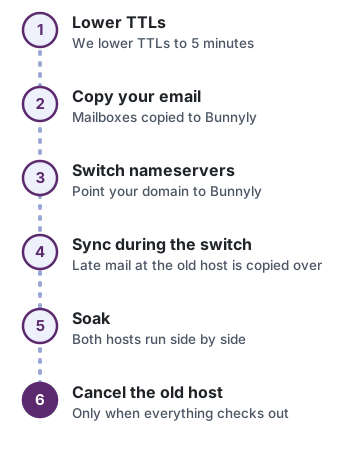
Pip: Keep your old hosting account open until you've checked that your website and email work on Bunnyly. Cancelling is the very last step.
Your mailbox login stays the same
Each mailbox keeps the same username (your full email address) and the same password. Your password carries over securely, so you don't have to set a new one.
Your existing email comes with you
All your email is copied to Bunnyly with every folder, read and unread marks, and the original dates. The copy on your old host is left as it is until you cancel it. Mail that reaches your old host after the switch is included too.
What to update afterwards
- Mail apps on your phone and computer. If an app uses your old host's server name, change it to
mail.yourdomain.com(with your own domain): incoming IMAP on port 993 with SSL/TLS, outgoing SMTP on port 587 with STARTTLS. See Email for step-by-step help. - Scripts and automations. Anything that watches your mailbox, such as a mail rule service, a helpdesk or an assistant, should be pointed at the new server too.
Pip: Not sure which server name your app uses? Open its account settings and look for the incoming and outgoing server. If it isn't mail.yourdomain.com, update it.
Hazel's Bakery moves from OldHost
Example data. Hazel, her bakery and OldHost are made up.
Hazel runs a small bakery and uses hazel@hazelsbakery.example on her phone. Here is what her mail settings looked like before and after the move.
| Setting | Before (OldHost) | After (Bunnyly) |
|---|---|---|
| Email address | hazel@hazelsbakery.example | hazel@hazelsbakery.example |
| Incoming server | mail.oldhost.example, IMAP | mail.hazelsbakery.example, IMAP |
| Incoming port | 993, SSL/TLS | 993, SSL/TLS |
| Outgoing server | smtp.oldhost.example | mail.hazelsbakery.example |
| Outgoing port | 465, SSL/TLS | 587, STARTTLS |
Her email: 1,240 messages on OldHost, 1,240 messages on Bunnyly after the copy (example numbers).
What she changed on her phone: in her mail app's account settings she replaced the incoming server name with mail.hazelsbakery.example, and the outgoing server name with the same name and port 587 (STARTTLS). Her username and password stayed the same. Then she sent herself a test email to check it worked.