Security basics
A few habits that keep your website and email safe.
Passwords
- Change the temporary password from your welcome email straight away.
- Use a different long password for the panel, each mailbox and WordPress, and a password manager.
Two-factor authentication (2FA)
With 2FA on, logging in to the panel also needs a code from an authenticator app on your phone.
- In the panel, click the person icon (top right) to open Edit User.
- Tick Enable two-factor authentication and click Save.
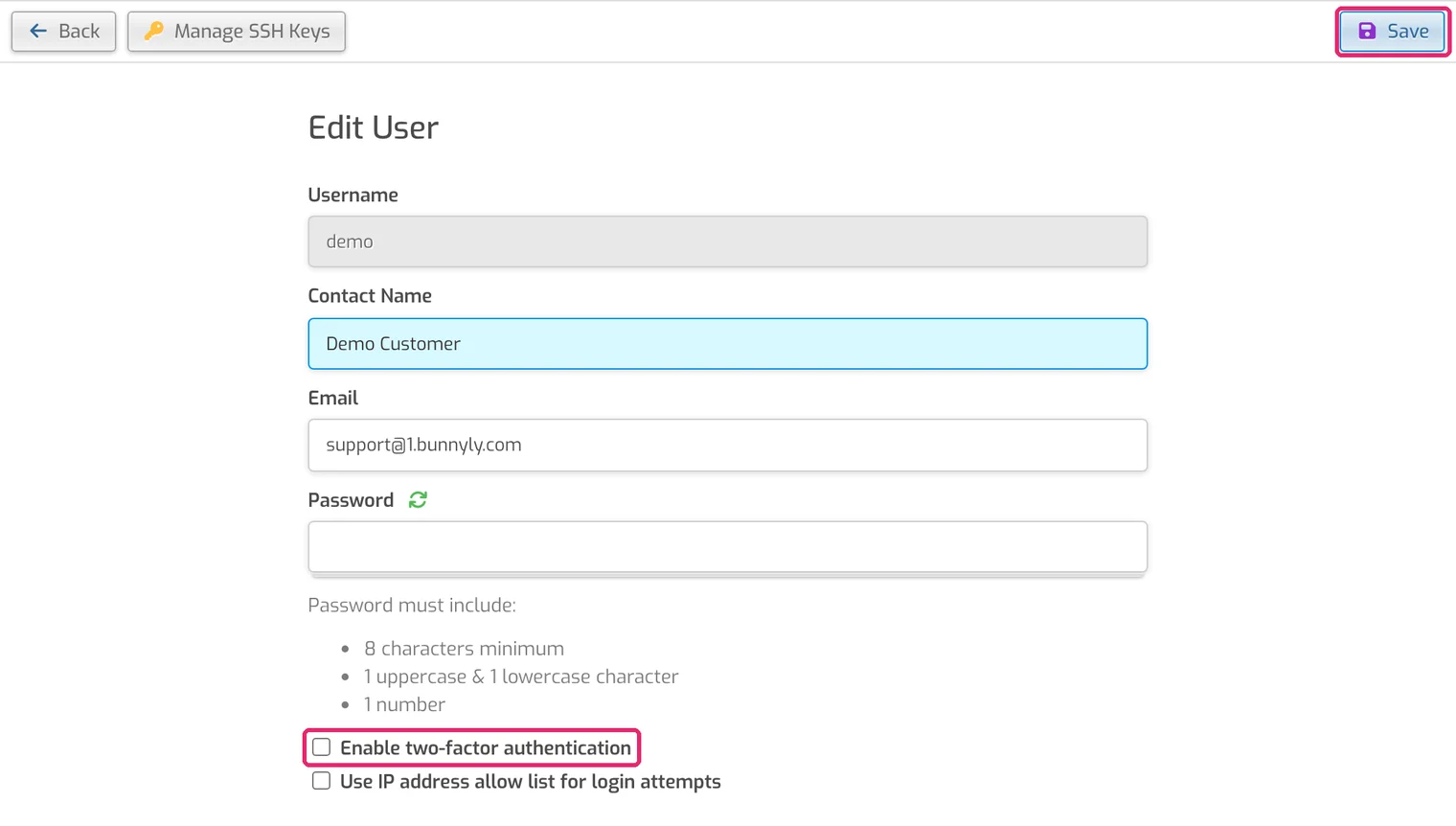
- After saving, the panel shows a QR code. Add it to an authenticator app on your phone (for example Google Authenticator, Microsoft Authenticator or 1Password).
- Save the reset code shown on that page somewhere safe (for example in your password manager). You need it if you lose your phone.
Lost your device?
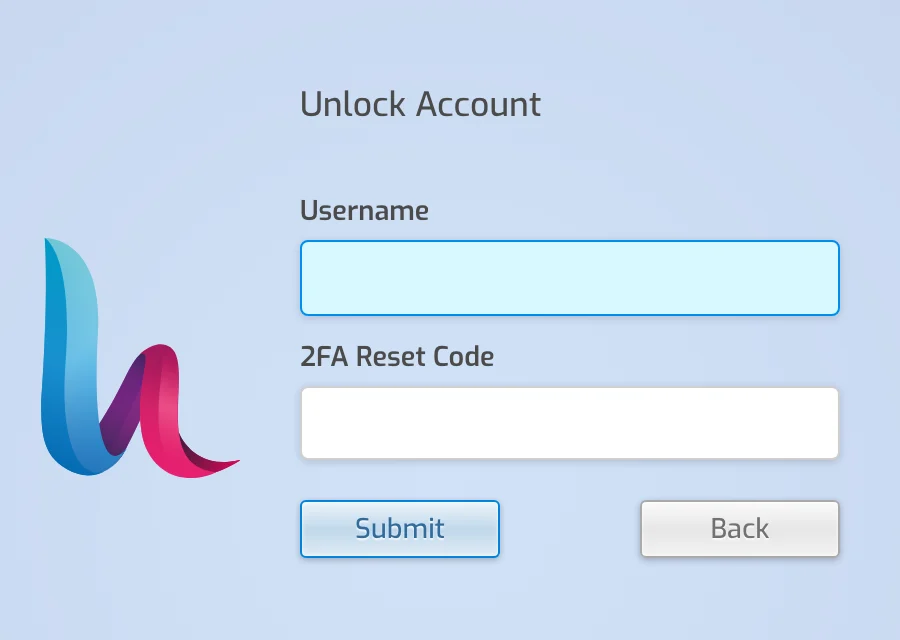
Go to the 2FA unlock page, enter your username and your 2FA reset code, and click Submit. Your account is unlocked and 2FA is turned off; turn it on again afterwards. The login page doesn't link to this page, so bookmark it.
Fake emails
Bunnyly will never ask for your password. Only log in at panel.bunnyly.com and your own webmail address (for example webmail.yourdomain.com), typed yourself.
Your website
- WordPress, plugins and themes update automatically. Delete what you don't use.
- Install themes and plugins only from trusted sources.
- Keep HTTPS on (it is set up automatically).