Welcome to Bunnyly
Shared hosting for your own domain. The examples use the sample domain demo.com; use your own domain instead.
New here? Start the guided setupEight steps with Hops and friends, from first login to a secure site and email.
Quick checklist
Used a hosting control panel before? These five steps cover the essentials, in order. For screenshots and tips at every step, use Start here.
Log in and change your password
Point your domain's nameservers to us
At your registrar, set
ns1.bunnyly.comandns2.bunnyly.com. HowAdd your website in the panel
Log in to WordPress
WordPress installs itself within about 2 minutes. Find your login
SSL (HTTPS) is automatic
Nothing to do: your domain gets a certificate within about an hour. Details
Want email at your domain too? Set it up.
Your ticks are saved only in this browser.
Log in and change your password
- Go to your control panel.
- Enter the username from your welcome email and click Next.

- Enter your password and click Login.

- After logging in you land on the Web tab. The bar at the top shows your disk and bandwidth use.
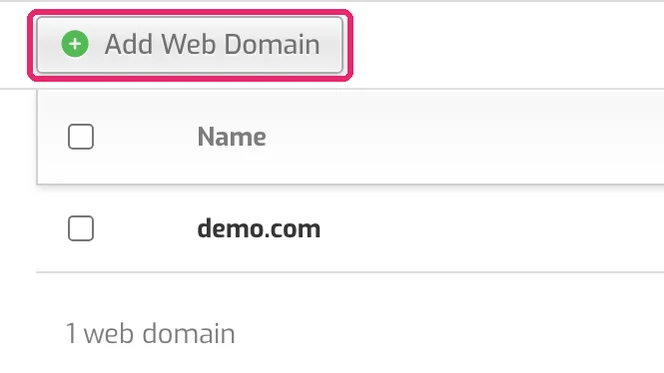
- Click the person icon in the top-right corner. The Edit User page opens.
- Type a new password in Password (or click the green arrows to generate one), then click Save.
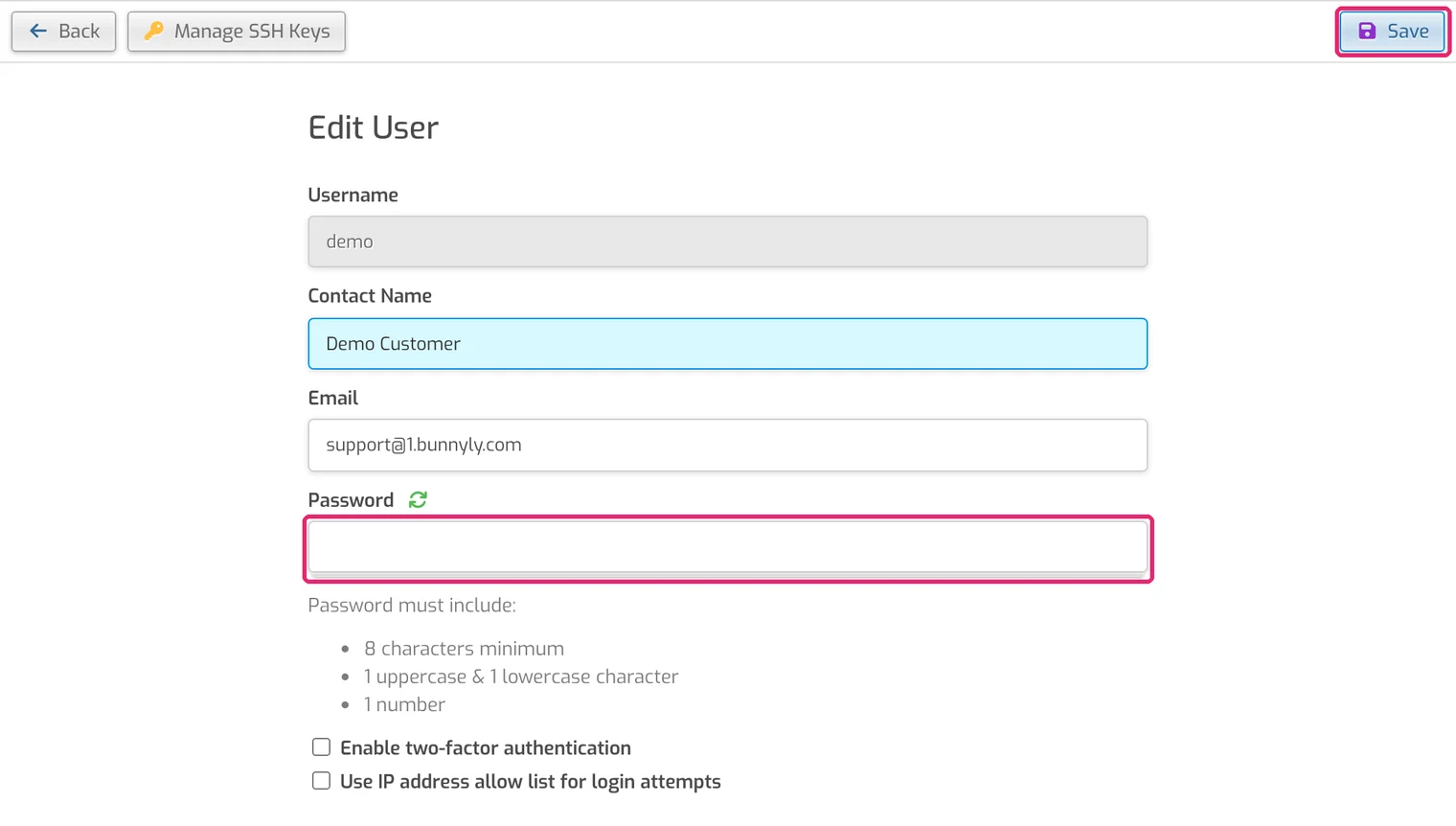
On the same page you can also turn on two-factor authentication.
Forgot your password?
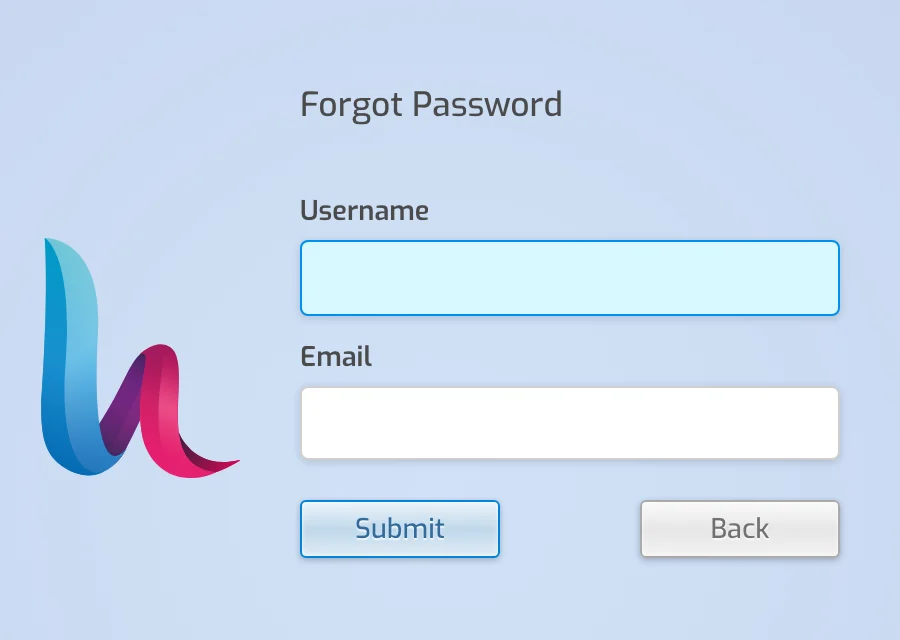
- Go to the control panel login, enter your username and click Next. The Forgot Password link only appears on this second screen.
- Click Forgot Password.

- Enter your username and the contact email on your account (both are needed), then click Submit.
- Open the email from
noreply@bunnyly.comand follow the link to set a new password.
If the email doesn't arrive, contact support: support@bunnyly.com.
The panel tabs you'll use
Web
Your websites and SSL.
DNS
Your domain's records.
Mailboxes at your domain.
DB
Databases and phpMyAdmin.
Backup
Your daily backups.
Folder icon
The File Manager (top bar).